
TierStep blocks and shortcodes
TierStep shows early-bird pricing on product pages by itself. Use its two blocks, or its shortcodes, to show the same information anywhere else: a launch landing page, a blog post, your home page or a page of every running offer.
| Use | Block | Shortcode |
|---|---|---|
| One product's early-bird information | TierStep Early Bird | [tierstep] and the four single-part shortcodes |
| Every running offer on one page | TierStep Early-Bird Deals | [tierstep_deals] |
TierStep Early Bird block
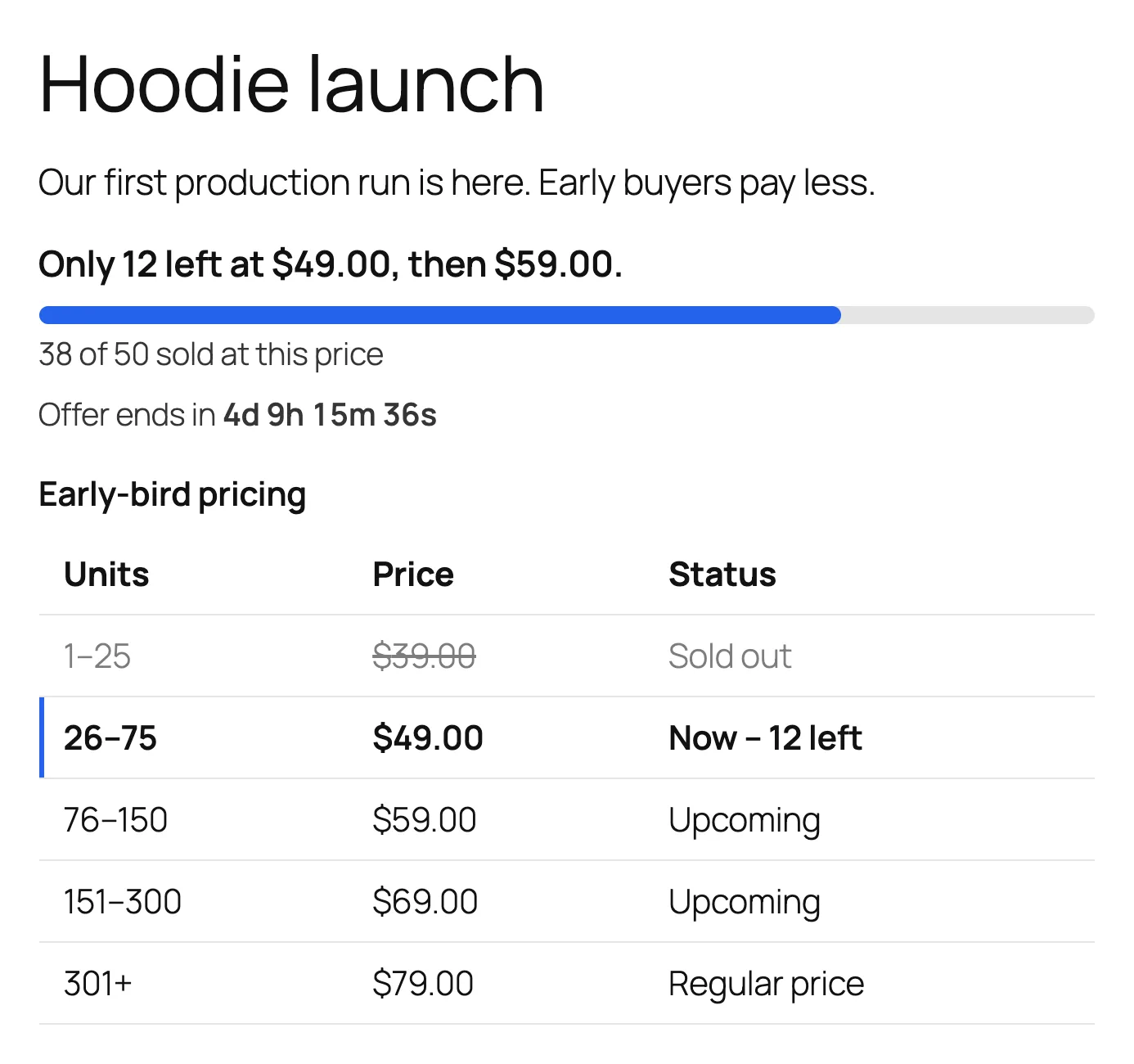
Shows a product's units left, progress bar, countdown and tier table.
- Edit a page or post, click + and add the TierStep Early Bird block.
- In the block settings, enter the product's ID in Product ID. Leave it empty when the block is on the product's own page.
- Turn off any part you don't want.
- Click Update or Publish.
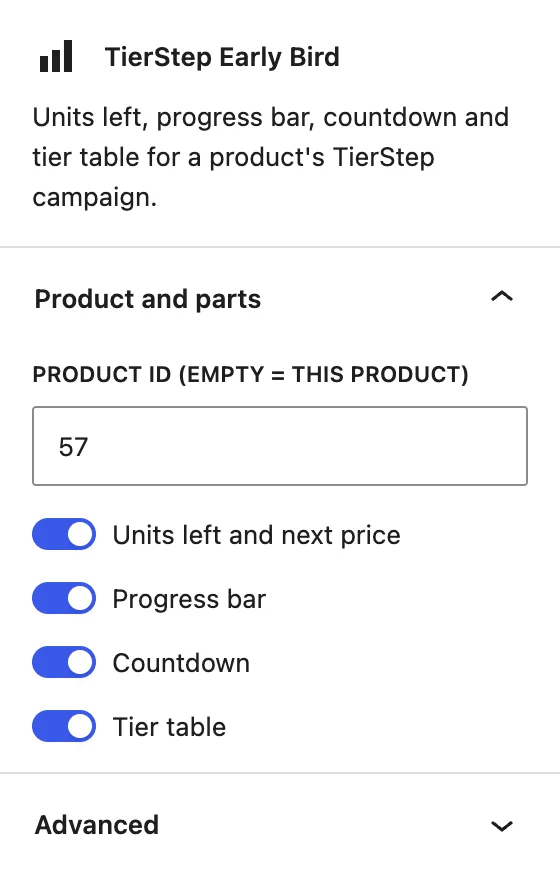
| Setting | What it does | Default |
|---|---|---|
| Product ID | The product to show. Empty = the product the block is on. | Empty |
| Units left and next price | "Only 12 left at $49.00, then $59.00." | On |
| Progress bar | The bar and "38 of 50 sold at this price" | On |
| Countdown | Time left to the end date, if the campaign has one | On |
| Tier table | Every price step with its status | On |
Before a campaign starts, the block shows the "starts in" message instead.
TierStep Early-Bird Deals block
Lists every product with a running offer, ending soonest first, in your theme's product grid. It fills itself: products appear while their offer runs and leave when it ends or sells out.
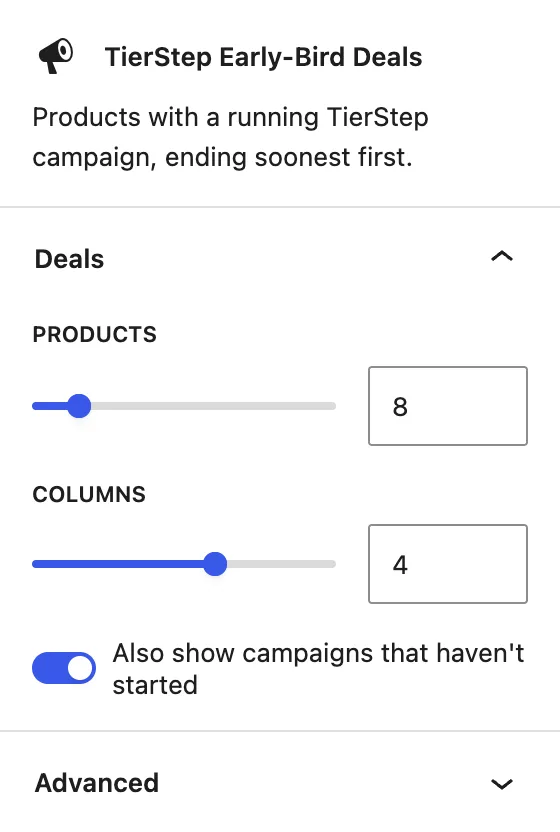
| Setting | What it does | Default |
|---|---|---|
| Products | The most products to show | 12 |
| Columns | Products per row | 4 |
| Also show campaigns that haven't started | Adds upcoming offers after the running ones | Off |
Full guide: create an early-bird deals page.
Shortcodes
Use these in page builders, widgets and classic content. Each one takes an optional id, the product's ID. Leave it out on the product's own page.
| Shortcode | Shows |
|---|---|
[tierstep] | Units left, progress bar, countdown and tier table together. Before the start date it shows the "starts in" message; after the last tier, the sold-out message. |
[tierstep_notice] | Units left and the next price |
[tierstep_progress] | The progress bar |
[tierstep_countdown] | The countdown to the end date |
[tierstep_table] | The tier table |
[tierstep_deals] | Every running offer, in a product grid |
Examples:
[tierstep id="123"]
[tierstep_notice id="123"]
[tierstep_deals limit="8" columns="4" upcoming="yes"]
[tierstep_deals] option | Same as | Values |
|---|---|---|
limit | Products | Any number, default 12 |
columns | Columns | Any number, default 4 |
upcoming | Also show campaigns that haven't started | yes or no (default) |
Find a product's ID
Go to Products and hover over the product's name. The ID appears under it as ID: 123. It's also in the address bar when you edit the product: post=123.
Notes and limits
- Blocks and shortcodes always show their parts, whatever the display switches in settings say. To move a part on the product page, turn it off in settings and place its shortcode or block where you want it.
- They show nothing for a product with no campaign, or one that's paused or ended, apart from the messages above.
- The product must be a simple or variable product.
- The wording follows Storefront text in settings.
Common questions
Can I show the early-bird price on my home page?
Yes. Add the TierStep Early Bird block (or [tierstep id="123"]) for one product, or the deals block for every running offer.
Can I show only the countdown?
Yes. Use [tierstep_countdown id="123"], or the block with every part except Countdown turned off.
Why does my shortcode show nothing?
Check the product ID, and the product's TierStep status box: the campaign may be paused, ended or not started yet.