Progressive Discounts in WooCommerce: Give Early Buyers More Off
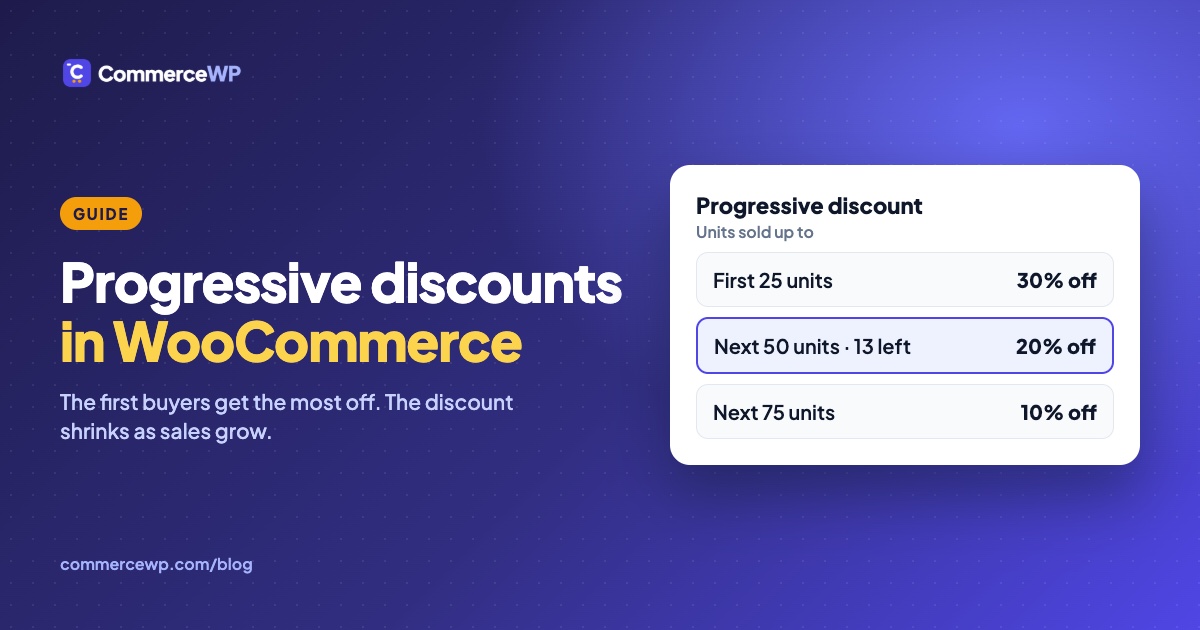
A progressive discount in WooCommerce gives the first buyers the biggest discount and makes it smaller as total sales grow: 30% off the first 25 units, 20% off the next 50, 10% off the next 75, then the regular price. The discount steps down on its own as each batch sells out, so you never edit a price by hand or hand out coupon codes.
WooCommerce can’t do this out of the box. A product has one regular price and one optional sale price with dates. This guide shows how to run a progressive discount with the free TierStep plugin, on one product, on variable products and across a whole category.
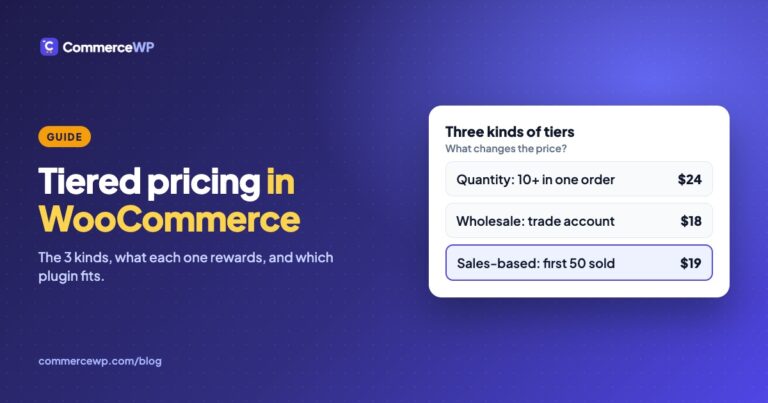
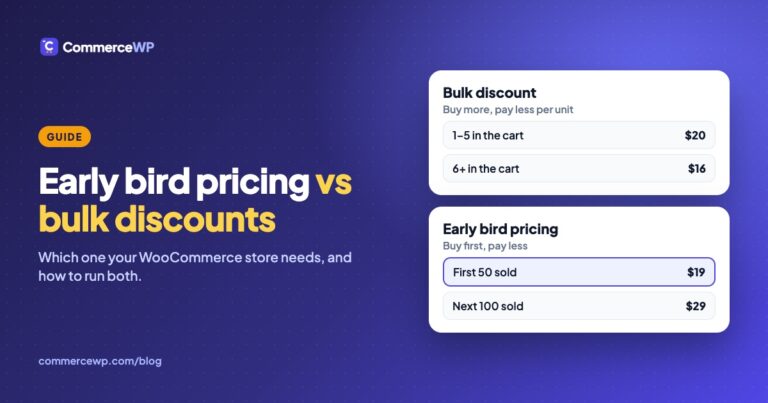
One note on the term. “Progressive discount” is also used for bulk pricing, where the discount grows with the quantity in one order. That’s a different rule, covered in early bird pricing vs bulk discounts and tiered pricing in WooCommerce. This guide is about the sales-based kind: the discount shrinks for everyone as total sales grow.
Why a progressive discount beats a flat launch sale
- A real reason to buy now. “30% off” with no end date can wait. “30% off, 13 left, then 15% off” can’t. The urgency is honest: the cheaper tier runs out because it sold.
- The discount follows the regular price. Tiers are stored as a percentage or an amount off, not as fixed prices. Raise the regular price later and every tier moves with it.
- One setting for products with different prices. A 30% tier works on a $20 T-shirt and a $200 jacket alike, which is what makes it the right mode for variable products and category-wide campaigns.
- Revenue climbs as demand proves itself. Your first customers get the best deal; the people who arrive after your launch posts and emails pay closer to full price.
How progressive tiers work in TierStep
A TierStep campaign is a list of tiers. Each tier says how many units sold (a running total from the start of the campaign) and what those units cost. When a tier sells out, the next one starts. After the last tier, the product returns to its regular price.
The setting Tier prices are picks how the tier value is read:
| Mode | You enter | With an $80 regular price |
|---|---|---|
| Fixed prices | The price itself | 39 is $39 |
| Percentage off the regular price | A percentage | 30 is 30% off, $56 |
| Fixed amount off the regular price | An amount | 15 is $15 off, $65 |
The two “off” modes are the progressive discount. Enter a smaller value for each later tier:
| Units sold up to | Value | Means |
|---|---|---|
| 25 | 30 | The first 25 units are 30% off |
| 75 | 20 | The next 50 are 20% off |
| 150 | 10 | The next 75 are 10% off |
| — | — | From unit 151, the regular price |
“Units sold up to” is a running total, not the size of each tier: the second row holds 50 units, not 75. Prices are rounded to your store’s decimal setting and never drop below zero. There’s no cap on the number of tiers, and rows can be typed in any order; TierStep sorts them when you save.
The arithmetic of a 150-unit launch
Take a product with an $80 regular price and the three tiers above, and assume all 150 units sell.
| Units | Discount | Price each | Revenue |
|---|---|---|---|
| 1–25 | 30% off | $56.00 | $1,400 |
| 26–75 | 20% off | $64.00 | $3,200 |
| 76–150 | 10% off | $72.00 | $5,400 |
| 150 | average 16.7% | $66.67 | $10,000 |
A flat 20% launch sale on the same 150 units brings in 150 × $64 = $9,600. The progressive version brings in $400 more, and the first 25 buyers still paid $8 less each than they would have in the flat sale. The last 75 paid $8 more, after 75 sales had shown the product sells.
This is arithmetic, not a forecast: a deeper first discount can also bring in buyers a flat sale wouldn’t, and a shallower last tier can slow the tail. The point is that you choose the shape. Front-load the discount for a launch that needs momentum; keep the steps small for a product that sells steadily and just needs a reason to buy now.
Set up a progressive discount on one product
Before you start, install and activate TierStep from Plugins → Add New (search “TierStep”). It’s free, with no Pro version. The getting started guide covers the first campaign step by step.
- Edit the product and open the TierStep Pricing tab in the product data box.
- Tick the box to enable the campaign.
- Set Tier prices are to Percentage off the regular price (or Fixed amount off the regular price).
- In the first row, enter Units sold up to
25and the value30. - Click Add tier and add
75with20, then150with10. - Decide whether Allow coupons during this campaign stays ticked. Untick it and no coupon can lower the tier price further while a tier is active.
- Optionally set a Campaign start date and Campaign end date. The campaign opens at 00:00 on the start day and closes at 23:59 on the end day, store time, or earlier if the last tier sells out.
- Click Update.
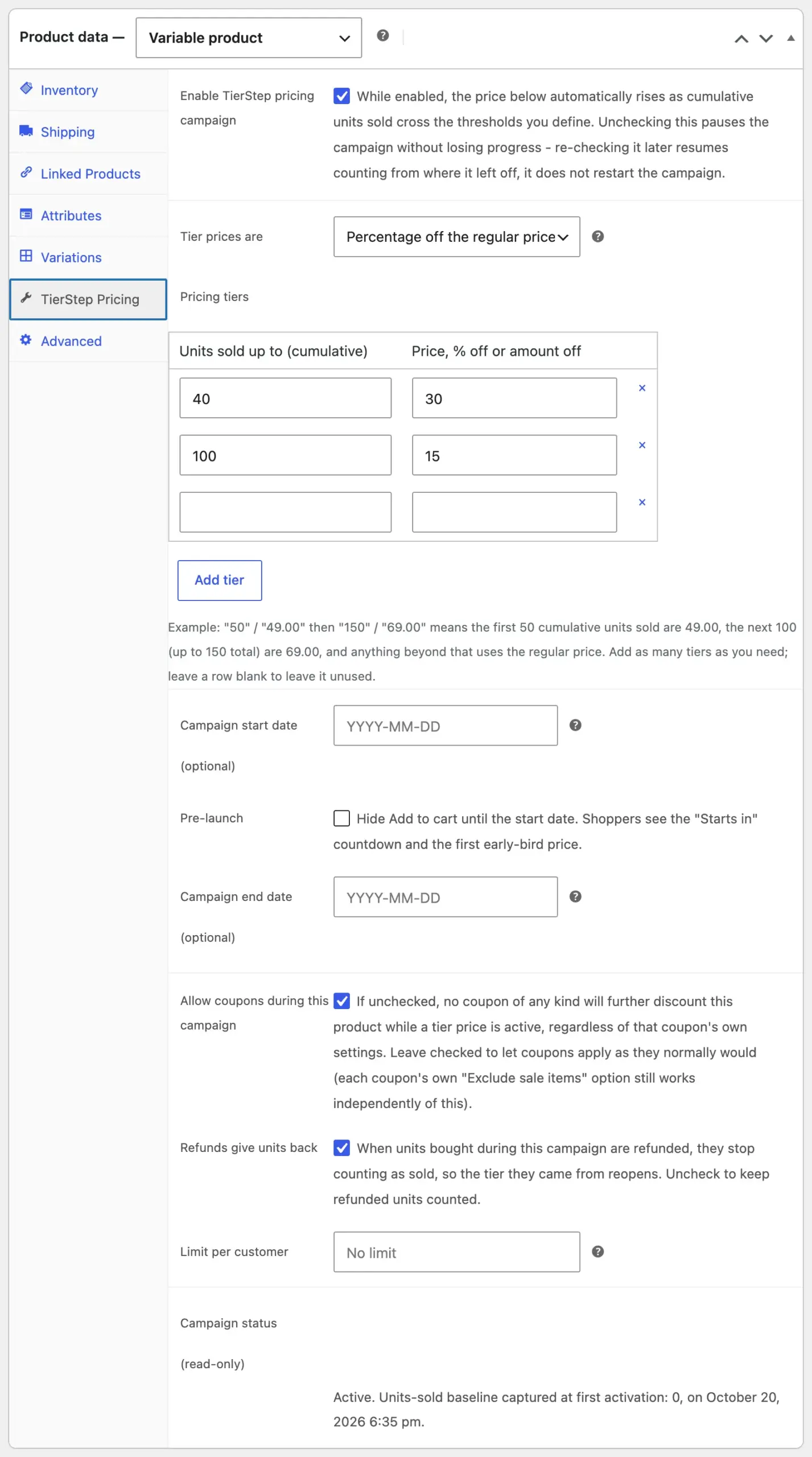
From now on the product page shows the current tier, how many units are left at that discount and what comes next. Each sale moves the count; when a tier sells out the next discount applies to the next order, with no cron job or manual edit. The tiers and price modes guide has the full reference.
Progressive discounts on variable products
Percentage and amount-off modes are the natural fit for variable products, because sizes and colours often have different regular prices. The variations share one sales count, and each variation is priced from its own regular price. So “30% off the first 40 units” gives size S at $28 and size XL at $32 the same 30% off, and both draw from the same 40 units.
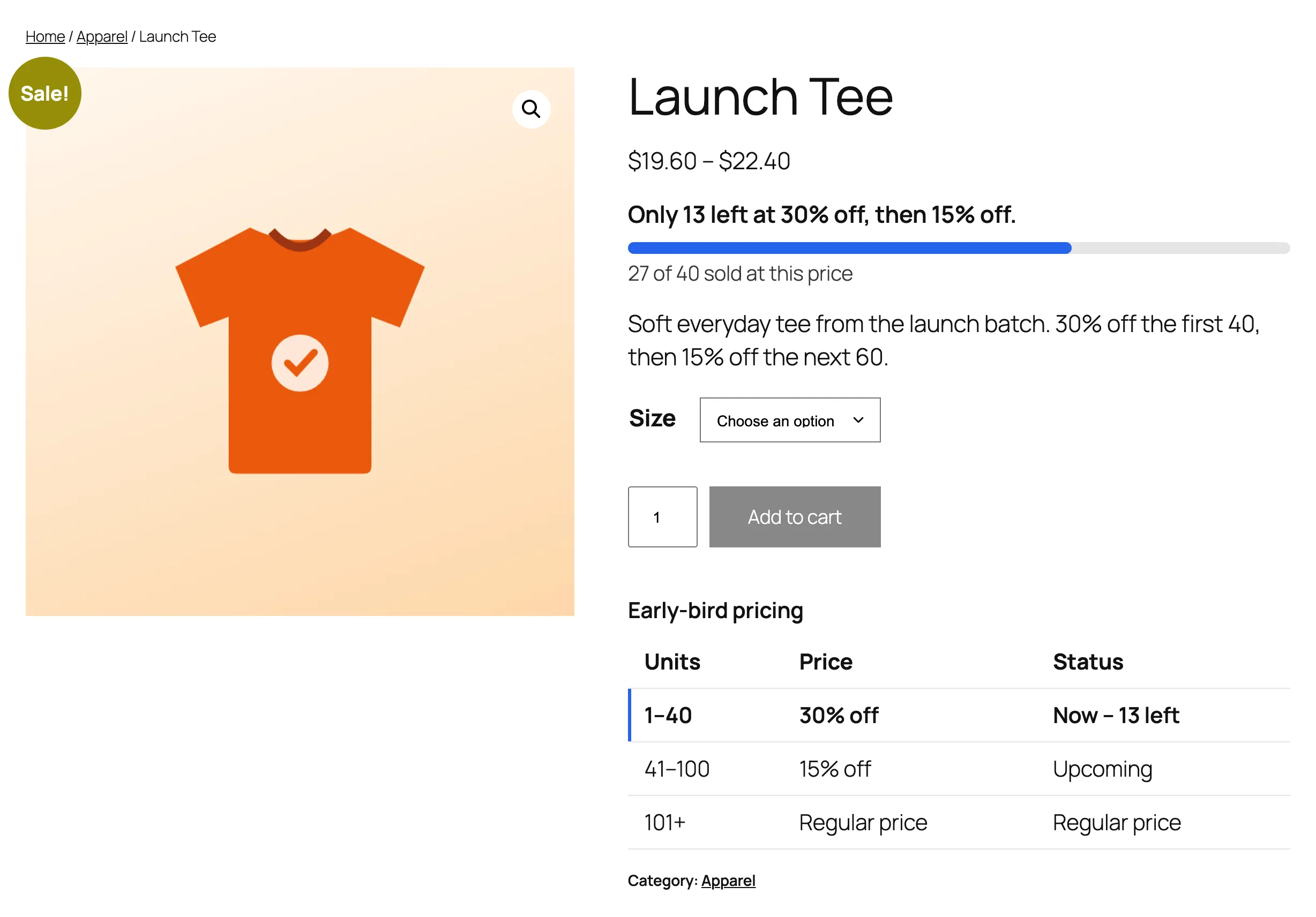
Shop and category cards show the discount with the price range, so shoppers see “13 left at 30% off” next to “$19.60 – $22.40” before they open the product.
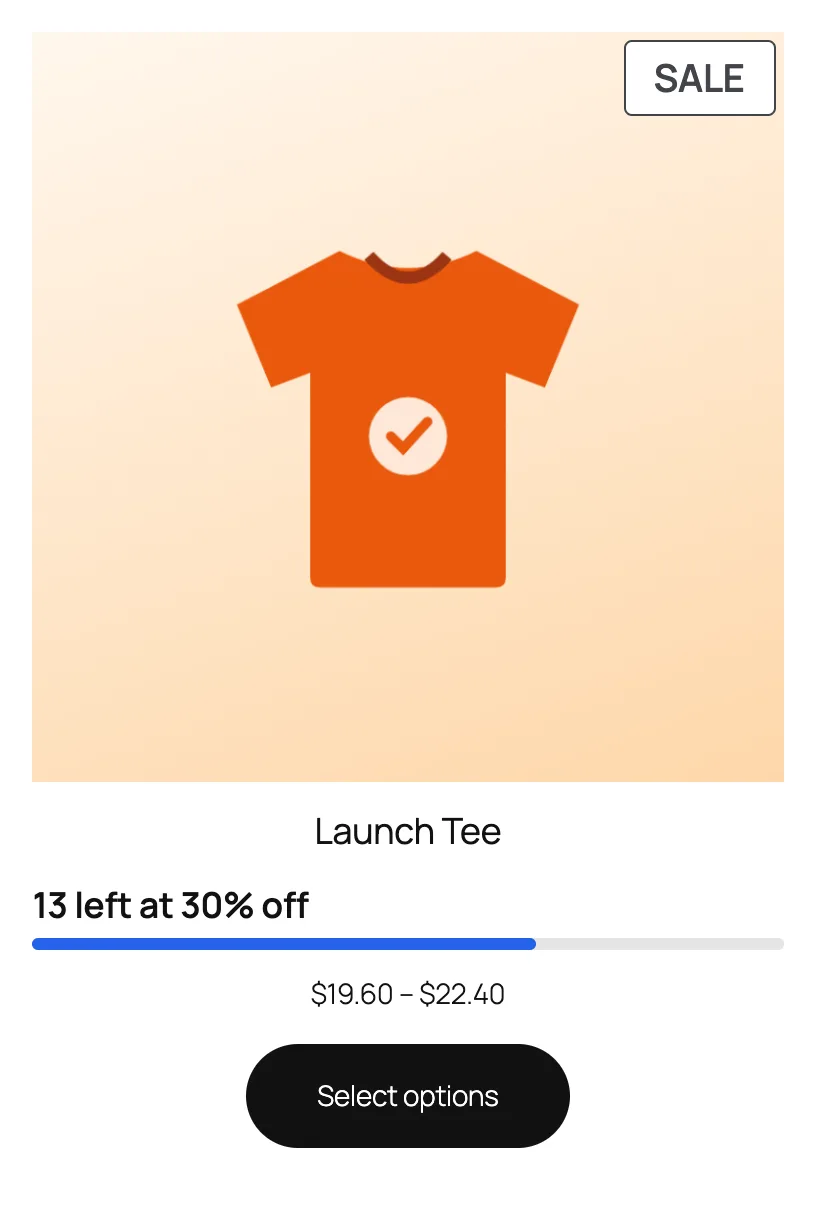
The variable products guide explains the shared count and how the price shows when a size is selected.
A progressive discount across a whole category
For a launch week on a category, a first-batch offer on every new product or a sale across a range, use a store-wide campaign instead of editing each product:
- Go to Products → TierStep Campaigns and click Add TierStep campaign.
- Name it, tick Enable this campaign and choose Applies to: all products, products in chosen categories, tags or attribute terms, or a picked list. Add any Exclude products.
- Set Tier prices are to Percentage off the regular price and add the tiers, for example 20% off up to 30 units, then 10% off up to 80.
- Set a Priority if you run several store-wide campaigns. When more than one matches a product, the lowest number wins.
- Save.
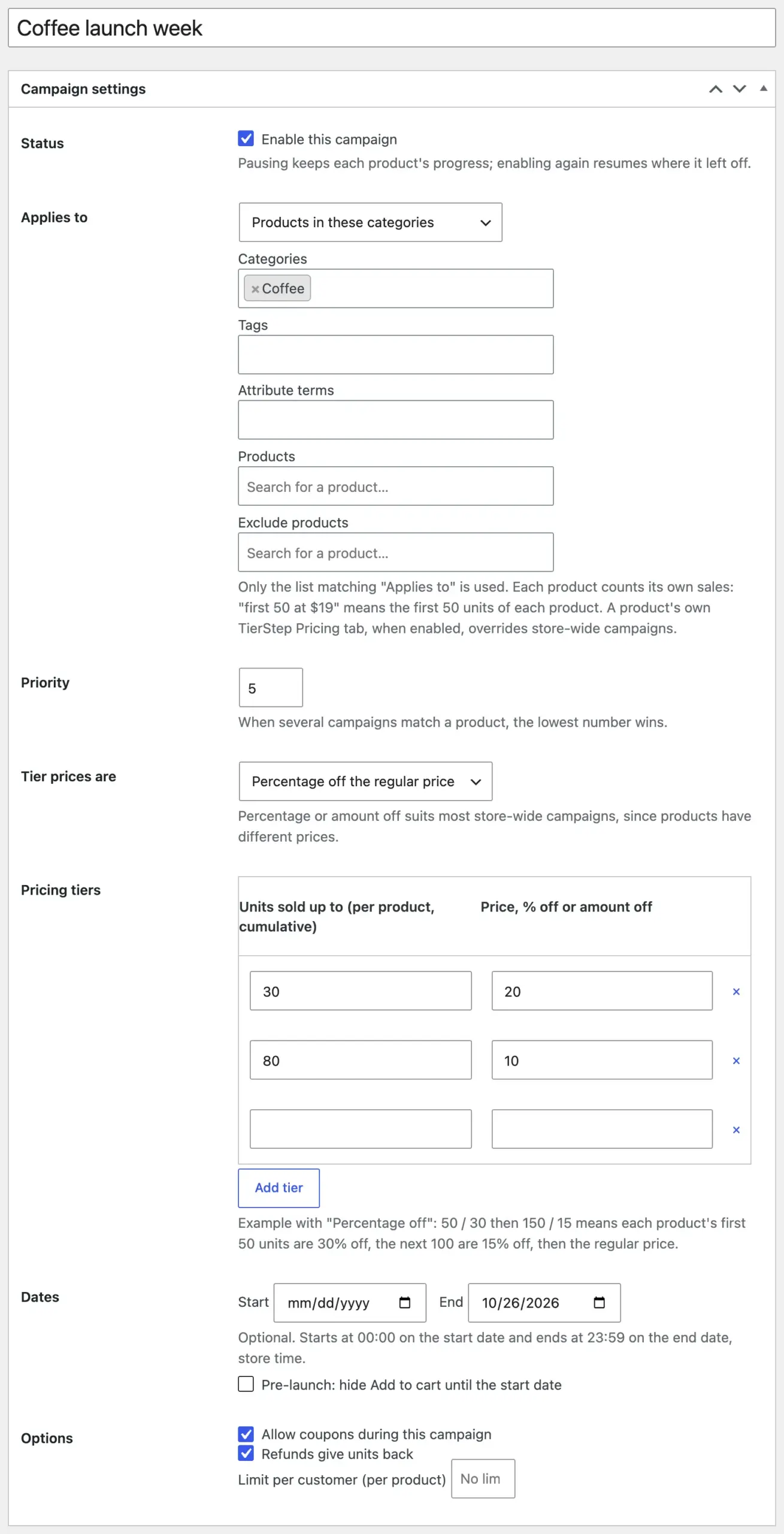
Each product counts its own sales: “first 30 at 20% off” means each product’s own first 30 units, not 30 units shared across the category. A product with its own TierStep Pricing tab turned on keeps using that instead. More in the store-wide campaigns guide.
What shoppers see
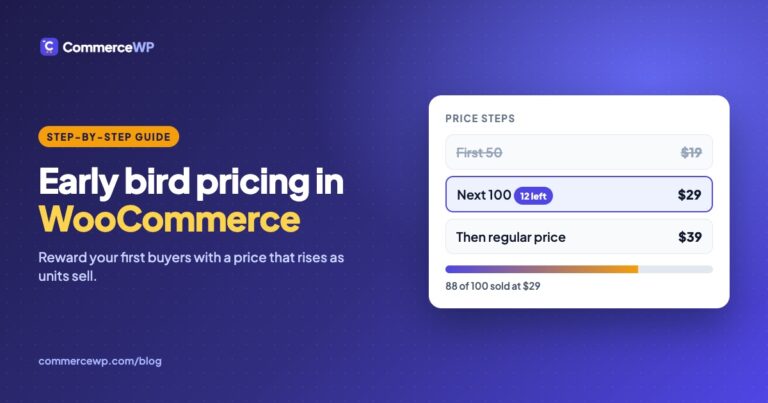
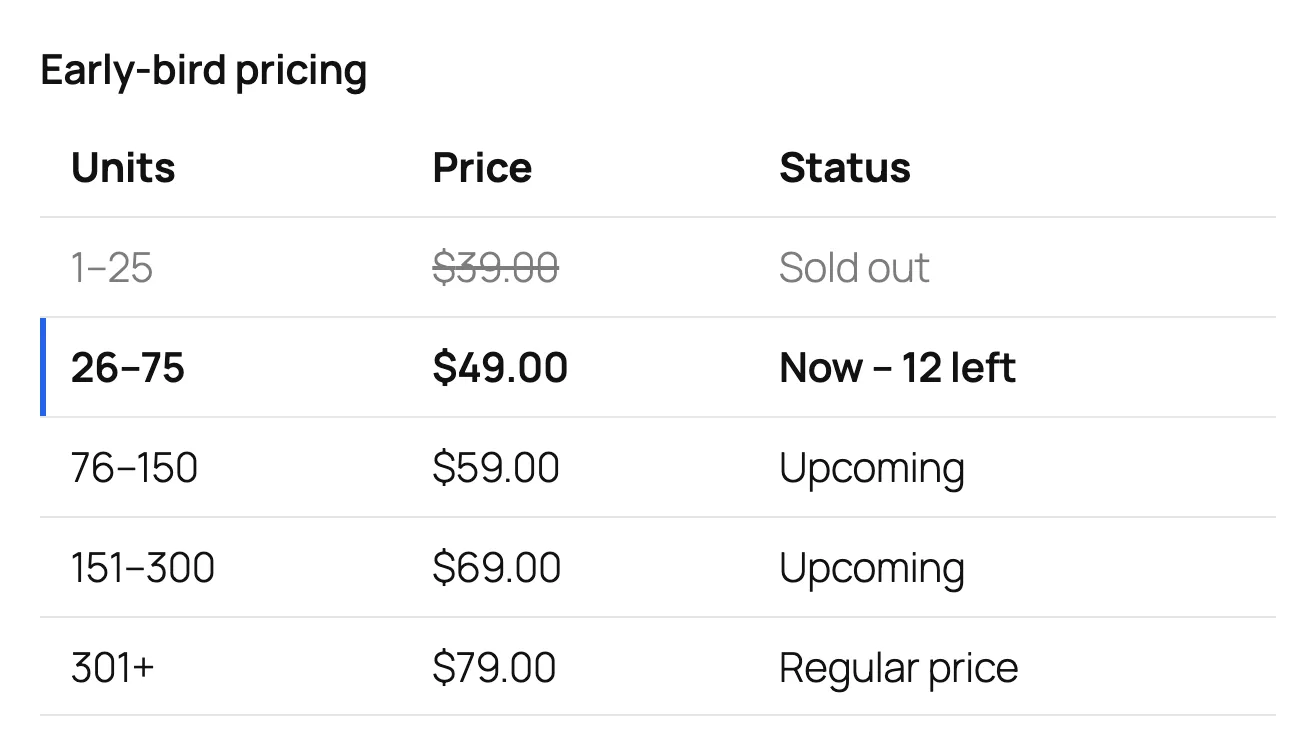
- On the product page: the current price, how many units are left at this discount, a progress bar and the countdown when the campaign has an end date. Under the Add to cart button, the tier table lists every step: sold-out tiers struck through, the current tier with units left, upcoming tiers and the regular price. For simple products a You save column shows each tier’s saving as an amount and a percentage; variable products show the discount in the price column instead (“30% off”).
- On shop and category pages: a badge with the units left at the current discount and a small progress bar.
- In the cart: the classic cart and mini-cart show the regular price struck through and “Early-bird saving: $30.00”. The Cart block shows WooCommerce’s own struck-through price and Save badge, because TierStep applies the tier price as a sale price.
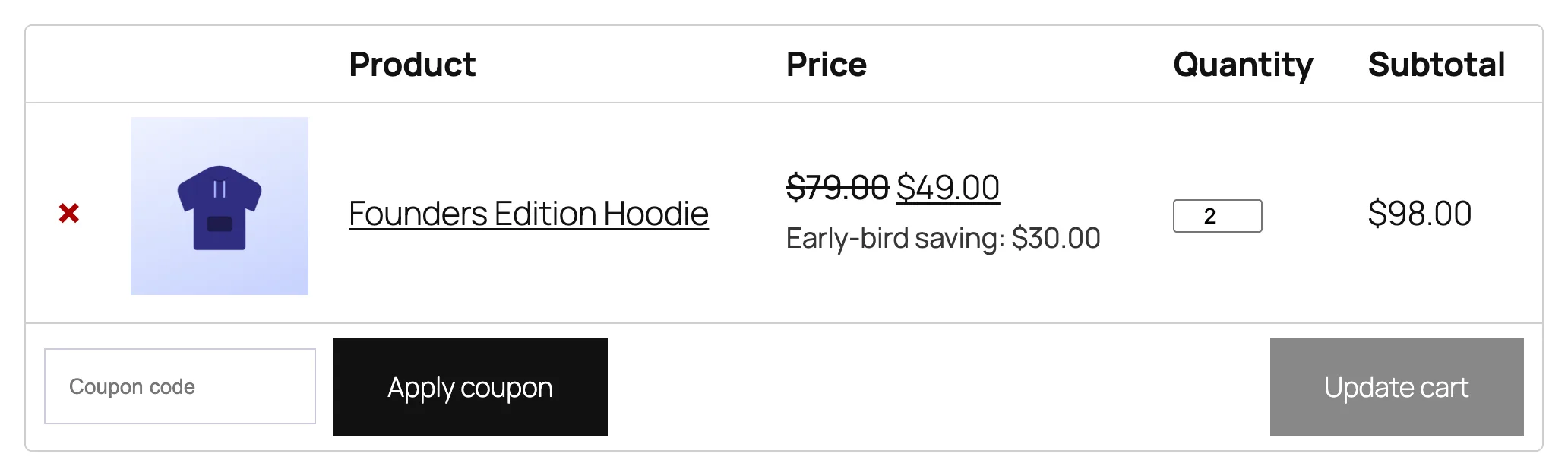
Every text can be changed and each part can be switched off or placed with a block or shortcode. See what shoppers see and the settings guide.
Keep the launch fair
Cheap tiers attract people who want the whole batch. TierStep handles the common problems without extra setup:
- One order can’t jump a tier. If a shopper adds more units than are left at the current discount, the cart asks them to reduce the quantity or place a second order for the rest.
- Checkout holds reserve units for a shopper for 15 minutes by default, so two people can’t both buy the last units.
- Limit per customer caps how many discounted units one buyer can take from a campaign.
- Refunded units go back to the tier they came from.
Details and the exact messages are in the fair launches guide.
Choosing your tiers
- Make the first tier small and the discount big. A deep discount on a short batch gets the launch moving; 10 to 25 units works for most small stores.
- Step the discount down, not the batch size up only. Each tier should feel like a real loss if missed: 30%, 20%, 10% reads better than 30%, 28%, 26%.
- Add an end date if the product isn’t limited by stock, so the campaign can’t drag on with a few units left in a tier.
- Say what comes next. TierStep already shows the next tier; repeat it in your launch email and social posts, with the real numbers.
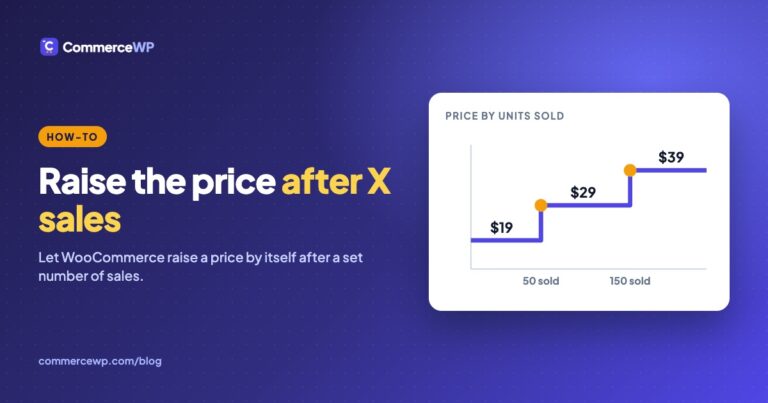
- Progressive discount or rising fixed prices? If the regular price is settled and you want shoppers to see round numbers ($19, $29, $39), use fixed prices, as in how to increase a WooCommerce price after X sales. If prices might change or vary by size, use a percentage.
Frequently asked questions
Is a progressive discount the same as a bulk discount?
No. A bulk discount grows with how many units one shopper puts in a single order. A sales-based progressive discount shrinks as total sales to everyone grow, and the price is the same for every shopper at a given moment. TierStep does the sales-based kind only.
Can I run a progressive discount on variable products?
Yes. Choose “Percentage off the regular price” or “Fixed amount off the regular price”. All variations share one sales count, and each is discounted from its own regular price.
What happens when the last tier sells out?
The product goes back to its regular price, and the tier table shows the finished tiers struck through. You can set an end date too; the campaign ends at whichever comes first.
Do coupons stack on top of the discount?
Only if “Allow coupons during this campaign” is ticked. Untick it and no coupon applies to that product while a tier price is active. A coupon’s own “Exclude sale items” setting still works either way.
If I change the regular price, do I have to redo the tiers?
No. Percentage and amount-off tiers are calculated from the regular price when it’s shown, so a new regular price changes every tier price with it. Fixed-price tiers stay as entered.
Can the discount apply to a whole category at once?
Yes, with a store-wide campaign under Products → TierStep Campaigns. Each matching product counts its own sales, and a product’s own campaign takes priority.
Related guides
- How to set up early bird pricing in WooCommerce
- WooCommerce early bird pricing plugins compared
- Early bird pricing vs bulk discounts
- How to increase a WooCommerce price after X sales
- Tiered pricing in WooCommerce: the 3 kinds
- TierStep documentation and the TierStep plugin page
Sources
Plugin behaviour is taken from TierStep 2.1.0 (WordPress.org listing) and its documentation, checked on October 24, 2026. If anything here is out of date, tell us and we’ll fix it.